From anywhere
crew's page lives on the machine that runs crew's server, and out of the box only that machine's
browser opens it, at a localhost link. That's fine at the desk. This tutorial is about the rest:
the page on another computer, on my phone, and Voice OS in a Discord voice channel, which is how I
talk to my sessions when I'm away from the desk.
It builds on the first two tutorials, and works the same whether the server runs on your laptop or on a VM. The details are in Other devices, Settings and the Voice OS guide.
Two ways in
There are two ways to reach the page from somewhere else. crew's proxy gives it a real hostname
on your network that any device can open. An SSH tunnel forwards the page's port to the
computer you're on, so it opens as localhost there. The tunnel is the quick one from another
computer that already has SSH. A phone has its own way in, through the proxy or Tailscale, and
On a phone covers it.
The microphone matters for choosing. Browsers give it only to localhost and HTTPS pages. A tunnel
is localhost, so voice works at once. The proxy needs HTTPS, which crew serves with its own
certificate, and each device has to trust that once. Until it does, the proxy link works for typing
and clicking but not for voice.
crew's proxy
crew's server starts the proxy and puts the page on it at voice--os.<domain>. You set it up in
Set up → Settings (it's in the machine picker), in the box called This machine.
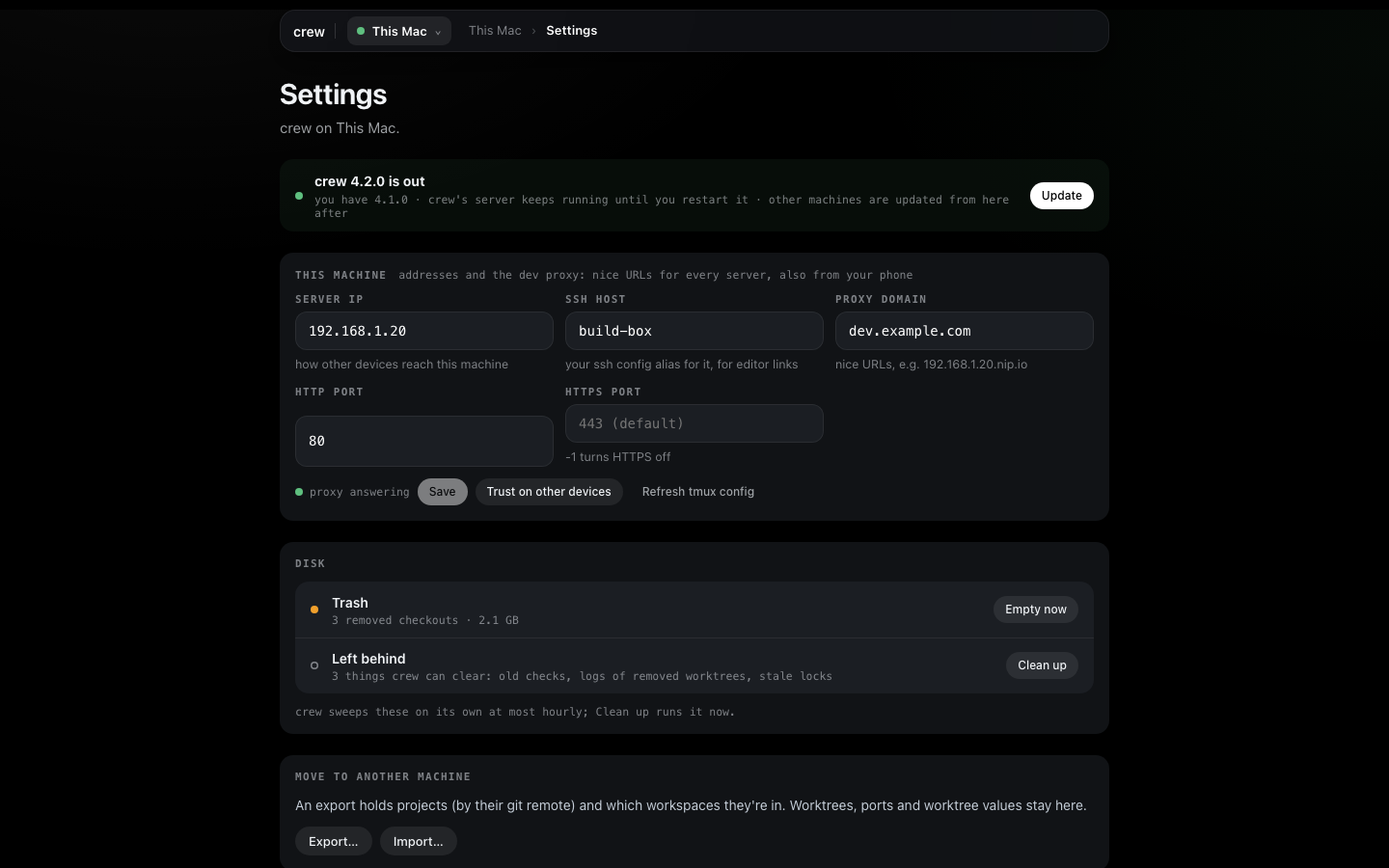
Two fields decide where the page lives:
- Server IP is how other devices reach this machine. crew detects it from the first network interface. Change it when that's the wrong one, for example to put in the Tailscale address.
- Proxy domain is the name the links use. Left empty it's
<server IP>.nip.io, a public DNS name that resolves to that IP with no setup. Put your own in when you have one, with a wildcard record (*.dev.example.com) pointing at the server IP.
Press Save. Next to it, the dot says proxy answering once the proxy is up. A changed domain
reaches the page's own link when crew's server starts again. Type /restart in any session's box in
Voice OS to do that. It ends the running sessions until they start again, so I do it when nothing is
mid-task.
On a Linux VM the proxy wants ports 80 and 443. If it can't have them, put other ones in HTTP port and HTTPS port, like 8080 and 8443.
Trust the certificate
Press Trust on other devices. The page answers with a line like "On the other device, open http://…/crew-ca.pem and trust crew's certificate", with its fingerprint. On an iPhone you open that link in Safari, install the profile, then turn it on under Settings → General → About → Certificate Trust Settings. Android and other computers have their own certificate screens. Check that the fingerprint the device shows matches the one on the page. You do this once per device.

When it doesn't load
When a proxy link doesn't load on a phone, it's nearly always one of two things. If the page doesn't
load at all, the phone can't reach the machine (another network, guest Wi-Fi isolation, a VPN,
cellular). If http://<server IP>/ loads but the hostname doesn't, the phone's DNS is refusing
nip.io, which routers with rebind protection and iOS Private Relay do. Allow nip.io there, or use
a domain of your own. Tailscale sidesteps both, and for a phone it's the
way I recommend (see On a phone).
An SSH tunnel
Over SSH, bare crew prints the proxy link when the proxy reaches the page. When it doesn't, it
prints the tunnel to run instead:
crew is running on this machine, port 51234. From your computer:
  ssh -L 51234:localhost:51234 store-vm
then open http://localhost:51234/login?token=…
Run the ssh -L line on the computer you're sitting at, leave it open, and open the link it gives.
The host in that line comes from SSH host in Settings. Without one it says <this machine> and
you put your own alias there.
On a phone
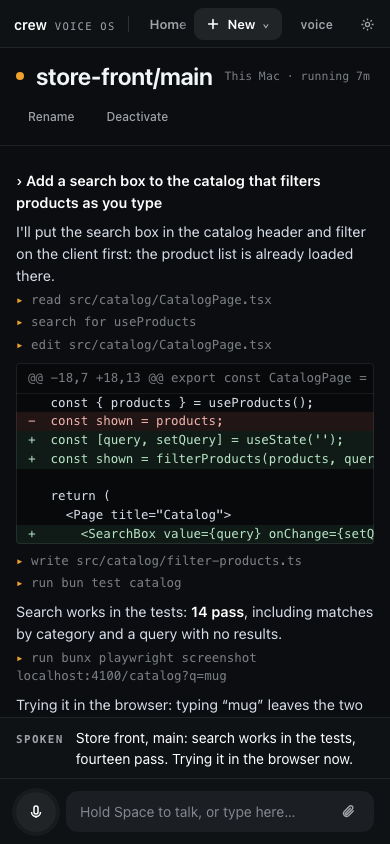
Voice OS on my phone is an app on the home screen. It opens full screen, stays signed in, and has its own layout: Home with the sessions, a session's stream, and the listening mode on the bar at the bottom.
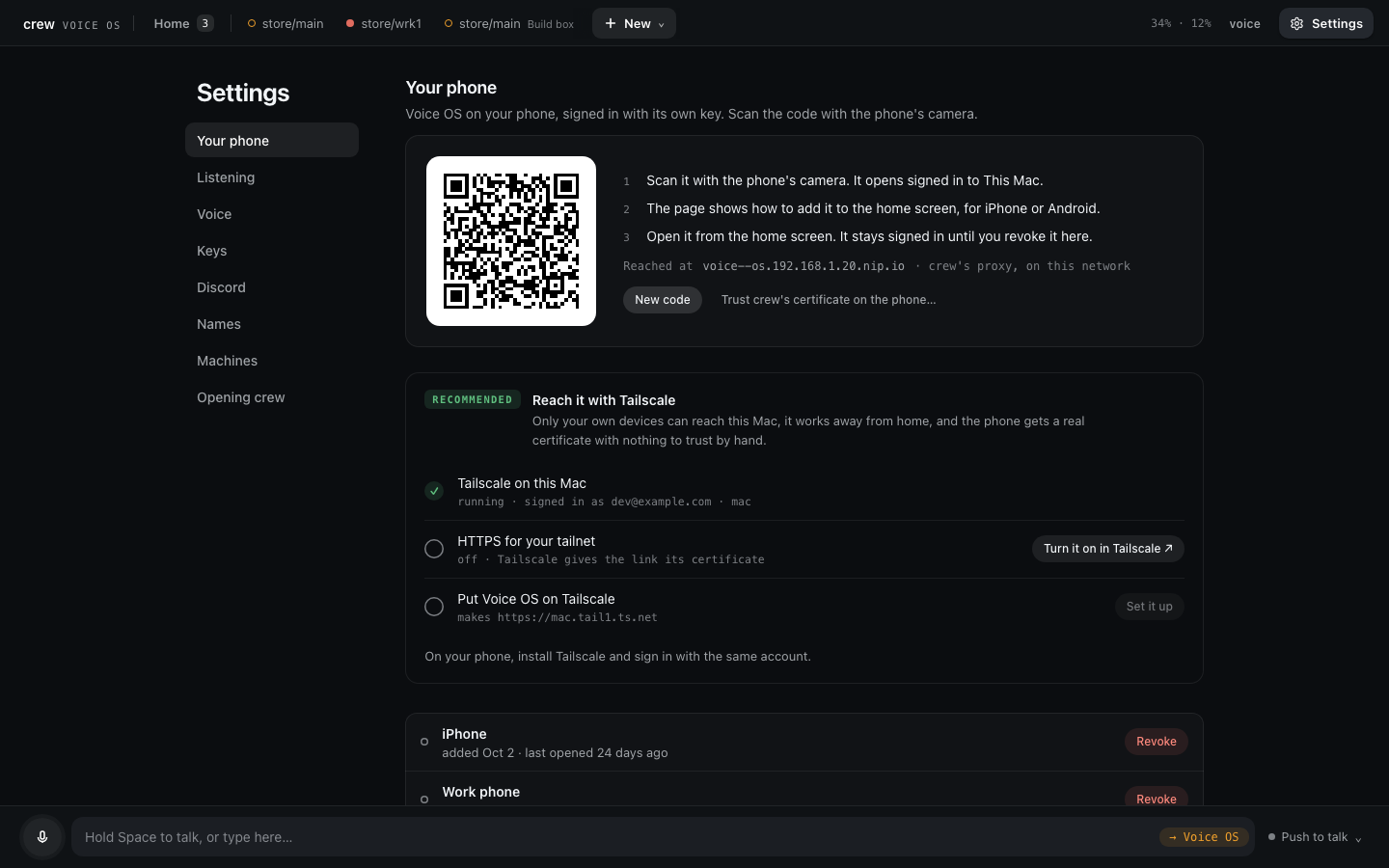
Everything starts in Voice OS's Settings (the gear at the top right), under Your phone. New code makes a QR code for one phone and says where it leads.
Through crew's proxy
Out of the box the code leads through crew's proxy, the one set up above, so it works on the same network as the machine. The phone needs crew's certificate for the microphone, so press Trust crew's certificate on the phone… first and do what it says on the phone (it's the same step as Trust the certificate). Then make the code.
Through Tailscale
Tailscale is what I use and recommend. Only my own devices reach the page, it works away from home, on cellular too, and the phone gets a real certificate, so there's nothing to trust by hand. The Reach it with Tailscale card under the code is a checklist of three:
- Tailscale on this Mac: install it, start it and sign in. The line ticks once it's running and signed in.
- HTTPS for your tailnet: Tailscale gives the link its certificate, and it's off by default. Turn it on in Tailscale opens the admin page where you switch it on.
- Put Voice OS on Tailscale: press Set it up. Voice OS is now at an
https://….ts.netaddress on your tailnet, and the card says On Tailscale.
On the phone, install Tailscale and sign in with the same account. Make the code after this, so it leads through Tailscale. Stop serving on the card takes Voice OS off your tailnet again.
Save it to the home screen
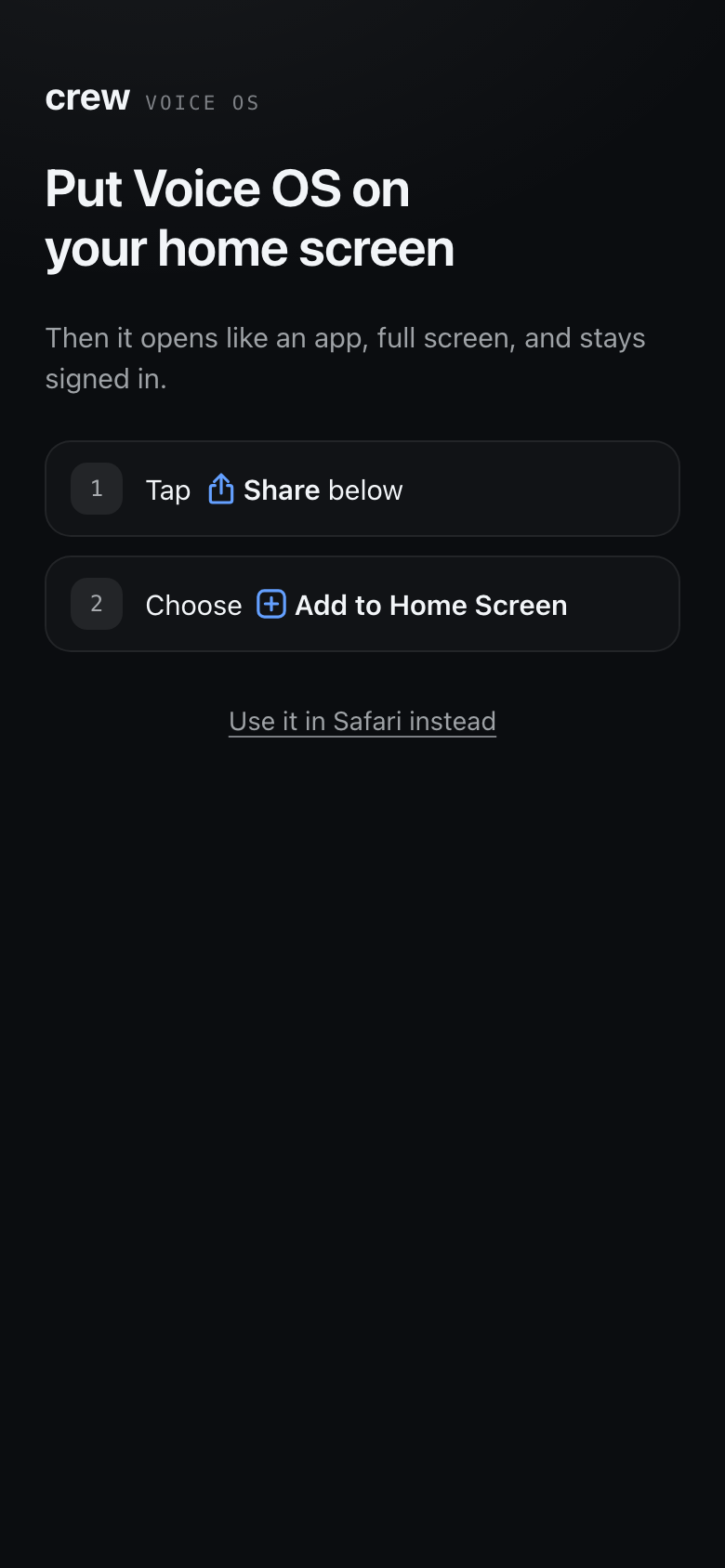
Scan the code with the phone's camera. The page that opens shows how to save it: on an iPhone tap Share in Safari and choose Add to Home Screen, on Android tap Install. From then on I open it from the home screen and it's signed in.
Each code is a key for one phone, shown once. The phones you added are listed under the card, with when each was last opened, and Revoke cuts one off at once, saved app included. On your phone in the Voice OS guide goes through the layout, the bar in each listening mode and Text only.
Push to talk is the most reliable listening mode on a phone, because phones pause the microphone when the app goes to the background or the screen locks. That's the main reason I use Discord when I'm out.
Voice OS in Discord
With Discord set up, a bot of your own joins one voice channel of one Discord server while Voice OS runs. You join that channel from the Discord app on your phone and talk, and Voice OS answers in the channel. It only takes your voice, anyone else in the channel is ignored. It needs no certificate and no open tab, and it keeps going with the screen off.
Voice OS's Settings (the gear at the top right) has a Discord section. Until it's set up it says Not set up and lists the steps.
Make the server and the bot
These are all in Discord.
- Make a Discord server of your own, private, with a voice channel. A channel named Voice OS is picked first. Otherwise crew takes the only voice channel, or asks.
- Open the Discord Developer Portal, create an application, open Bot, and press Reset Token to get the bot's token. Keep it for the next step. The bot needs no privileged intents, so you can leave those switches off.
- Invite the bot to your server: OAuth2 → URL Generator, tick the
botscope, and the permissions View Channel, Connect and Speak. Add Send Messages and Attach Files if you want sessions to post to a text channel (below). Open the generated URL and pick your server.
Hand crew the token
The token is a secret, so the page never asks for it. Paste it in a terminal on the main instead:
crew server discord setup
It asks for the token and hides what you paste. crew checks it with Discord first, and a rejected token saves nothing. Then it picks the server (the only one the bot is in), whose voice to take (the server's owner, which is you) and the channel, and checks the bot may View Channel, Connect and Speak there. When it can't decide, it lists the options and says what to run again. The running Voice OS picks it up on its own, no restart.
Join the channel
Open Discord, join the voice channel, and talk. Settings' Discord section now shows whether the bot is connected and whether you're in the channel.
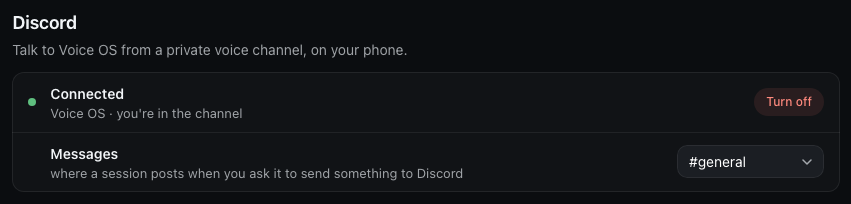
While you're in the channel, Discord is the microphone. Only two listening modes mean anything there: on demand, where only what follows "Voice OS" is taken, and hands-free, where every turn is acted on. Pick one from the menu by the mic on the page, or say it. Any open tab still shows the conversation and takes typing.
Turn off leaves Discord and removes the token. It asks first, and Keep it backs out. Clicking voice in the top bar to turn voice off takes the bot out of its channel too, until you turn voice on again.
Sending things there
Sessions can post to Discord when you ask them to: "send that screenshot to Discord", "post the summary in Discord". It works for sessions on the main and on any remote, and the main posts it with the bot. Up to 10 files of 10 MB each go in one message, and mentions in it never ping anyone.
Messages go to the voice channel's own chat. To use a text channel instead, pick it under Messages in the Discord section.
That's the whole tour. From here, Voice OS commands lists everything you can say. Everything on these pages is also a crew command, listed in every command.