Working with Voice OS
In the first tutorial you made the store workspace with
store-front and store-api, checked out store/main and then
a second worktree, store/wrk1. Both run
their dev servers on their own ports. This one is about the other half of crew's page, Voice OS,
where each of those worktrees gets its own Claude Code session and you drive them by talking,
typing or clicking. We'll fix a real bug in store-api along the way. Your own repos work the same
way.
Everything here is covered in more depth in the Voice OS guide, and every single thing you can say is listed in Voice OS commands.
Two keys
Voice OS needs two API keys of its own. The Anthropic key runs the kernel, the small model that works out which session your words are for, and the narrator that writes the spoken summaries. It is separate from your Claude Code login, which is what the sessions themselves run on. The Soniox key is speech in and out. Get the first from the Anthropic Console and the second from your Soniox account at soniox.com. Both bill per use; the guide's Privacy and cost has the numbers.
You don't have to set them up front. The first time you open Voice OS without them, the page shows a Before you talk sheet that asks for the microphone and for each missing key. crew checks each key with its service before saving it, and a rejected one stays in red with the reason. Press Start Voice OS when they're in, or Not now if you only want to type for a while: text and clicks work without them.
The keys are kept in ~/.config/crew-voiceos/, readable by you only, and Settings shows which are
set without ever showing them. A key saved while the server runs is used from your next words on, no
restart. Don't export ANTHROPIC_API_KEY in your shell instead: it would also move your own
Claude Code onto per-token billing.
Opening Voice OS and activating the worktrees
Run crew and the page opens on Home. Pick Voice OS.
Nothing talks yet, because only active sessions exist for voice. An inactive worktree has no
Claude process and says nothing; activating one starts its Claude Code session in that worktree,
with crew's orientation prompt, and gives it a tab. Open New → Activate a worktree (or the same
button on Home). That page lists every worktree on the machine grouped by workspace, and each row
has Activate. Activate store/main and store/wrk1.
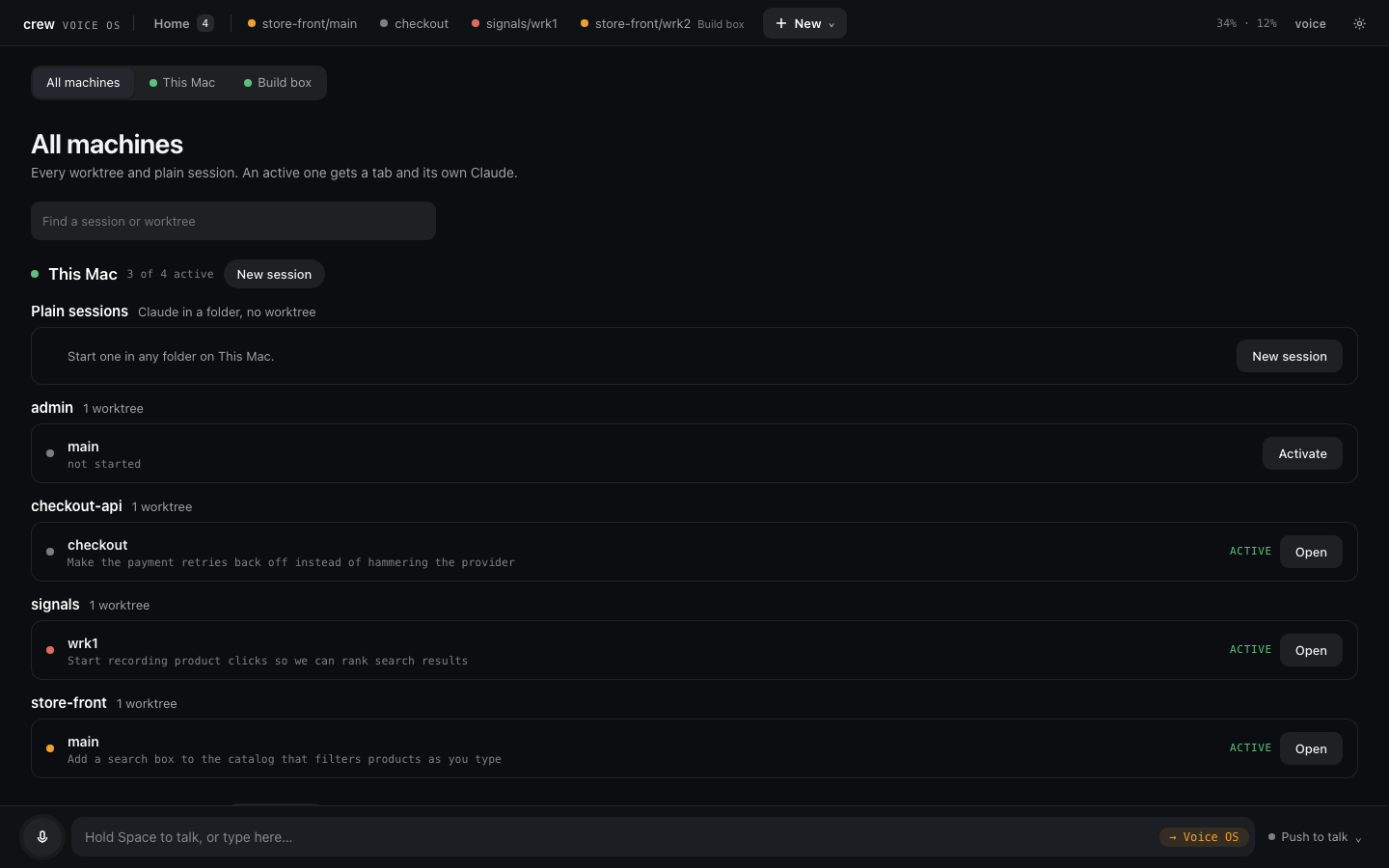
You can also just say it: "Activate store main." Voice OS answers "Activated store/main. Switch there?", and a yes takes you there. From the button nothing is said.
Home
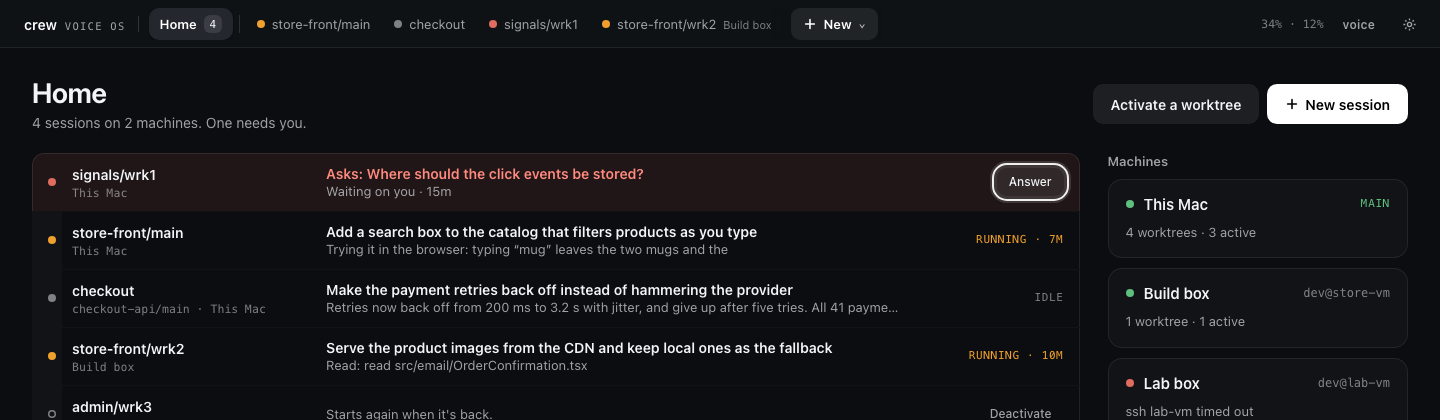
Voice OS opens on Home from now on. On the left is one row per active session, from every machine, each with what it is doing. Whatever waits on you comes first, tinted, with Answer. On the right is a card per machine with what it holds.
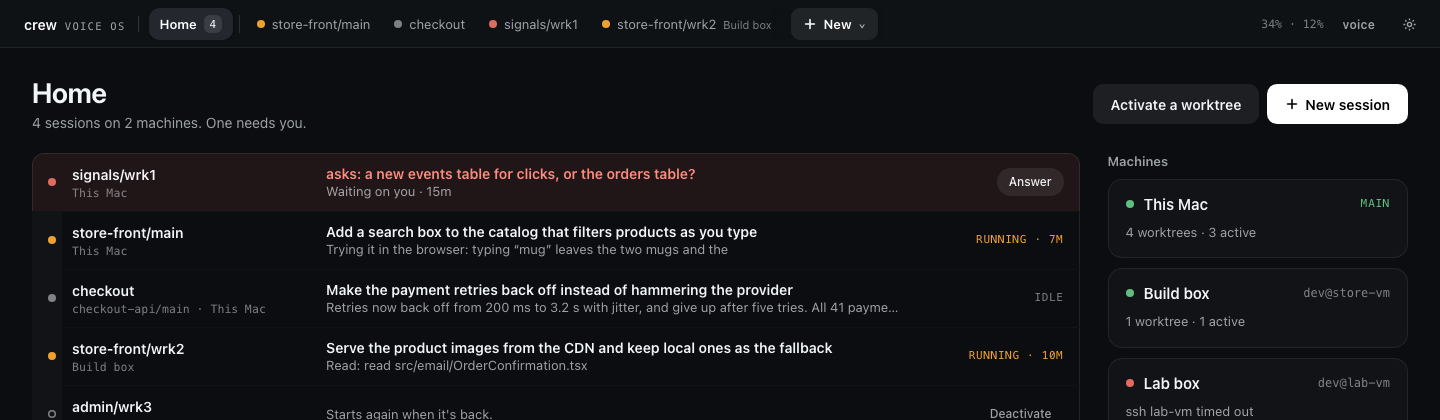
The bar along the top has a tab for each active session with a state dot. Drag a tab to reorder it
(Home's list follows the bar's order). Drop a tab onto the middle of another tab instead and the two
become a group: an outline shows you're about to group rather than move, and you're asked for a
name. When both sessions are in one workspace it suggests that workspace's name, so here it offers
store. Each group gets its own colour (blue, violet, pink, teal, sand or slate, the first one not
already taken), and you can change it from the group's right-click menu, where you also rename or
ungroup it. On the bar a group is one chip with its sessions' dots and a count; click it and the
bar holds only that group until you press ‹ or Esc.
Home shows one list per group, in its colour and in the bar's order, with the sessions in no group last.
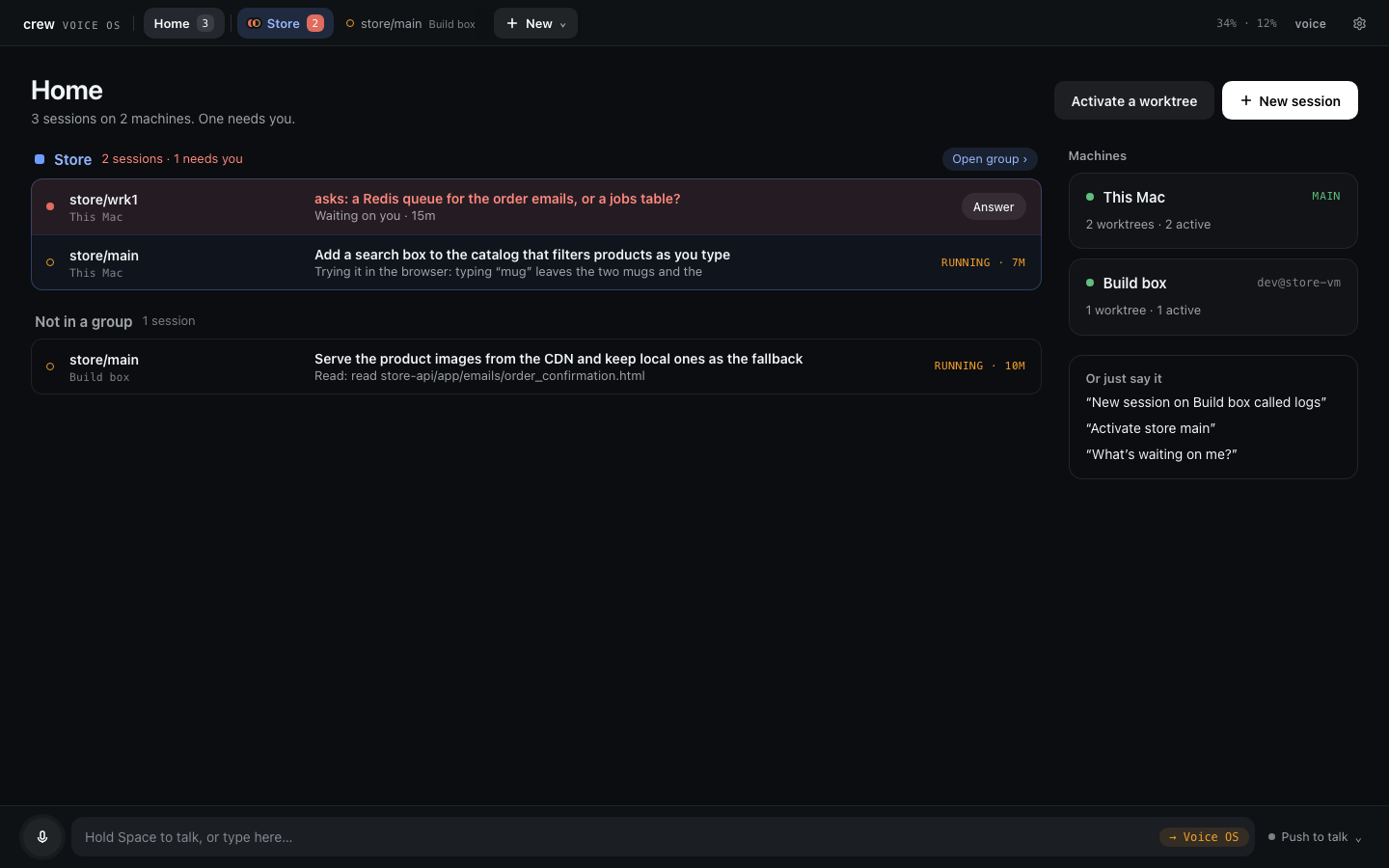
Groups are a page thing only. Voice doesn't know about them, so you still talk to sessions by name.
Giving a session a name
store/wrk1 is fine to read but clumsy to say. Click rename on a session's header, type a name
and press Enter, or say "rename this to search work". The name replaces the ref everywhere on the
page and in what Voice OS says, and it answers to it. Names are Voice OS's own and change nothing in
crew or git; an empty name brings the ref back. I'll keep store/main as it is for the rest of this.
How the tab listens
The round button next to the mic chooses how this tab listens.
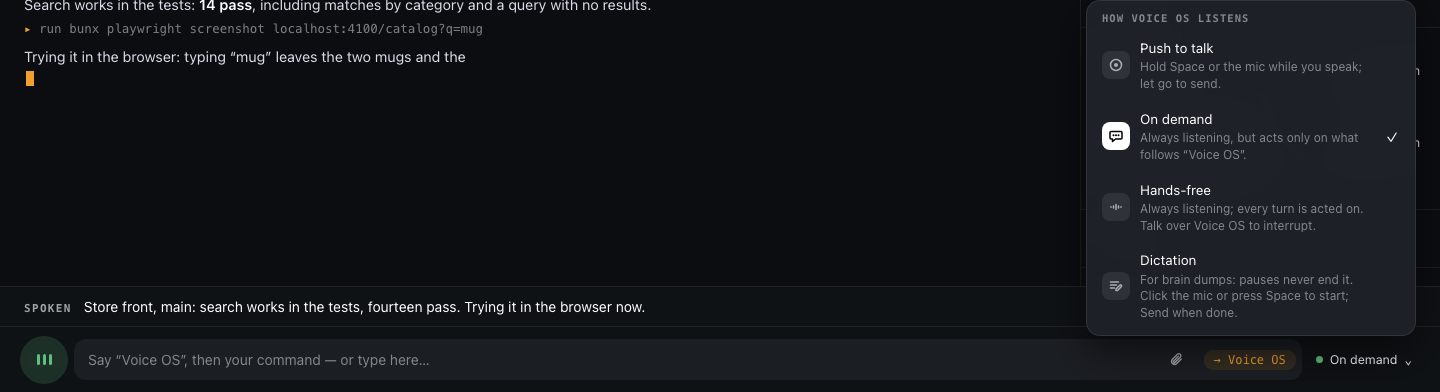
Push to talk is the default and the one I use most: hold Space (outside a text field) or the mic button, talk, let go. Hands-free listens all the time and every sentence is a turn, which is nice when your hands are busy and costs more, since the microphone streams to Soniox the whole time. On demand also listens all the time but acts only on what follows "Voice OS", for a noisy room. Dictation is for long brain dumps that go to the session word for word. Each tab remembers its own mode, and "hands-free on" or "push to talk" by voice switches it too.
You can always type. Text typed on a session page goes straight to that session, as if you typed it into Claude Code.
Fixing the search bug
Here is the bug. On store-front, searching for "Mug" finds both mugs, and "mug" finds nothing.
Open store/main, hold Space, and say:
Find out why searching for mug shows nothing.
The words go to store/main exactly as you said them. The session knows it is in a crew worktree,
so it reads the API's log through crew rather than guessing, and finds the line search q='mug' -> 0 products next to q='Mug' -> 2 products. From there it
opens app/catalog.py in store-api, where search compares query in product.name, which is case
sensitive, and proposes to compare both sides lowercased. It speaks a short line when it has
something to say, and the stream shows the diff.
Sessions start in Auto mode, so reading files and running the tests go ahead on their own. When it wants something Claude Code judges risky, or when you've put it in Ask mode, it asks.
Questions and approvals
When a session asks you something, it is docked above the text box as a card: a title that asks, what you're judging, and the answers on the right. A dim line under it says what to say.
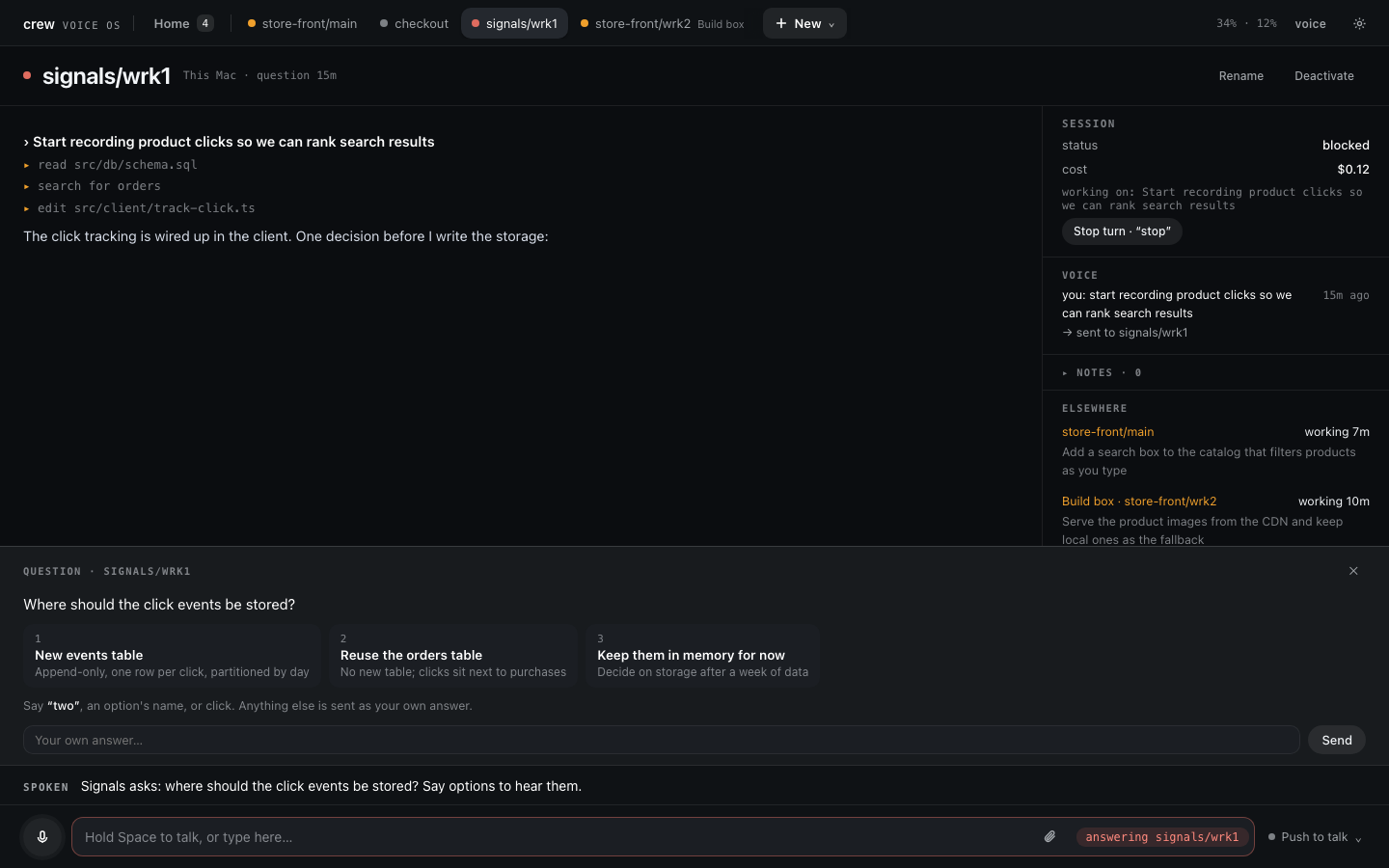
Answer it the way you'd answer a person: "the second one", "yes", "no, keep the exact match for SKUs". A question waiting on another session shows on Home first, tinted, with Answer.
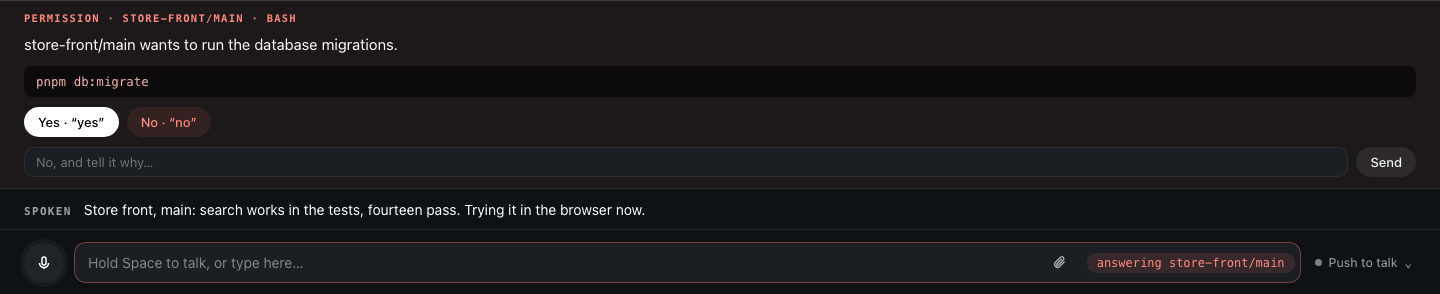
A permission reads the same way: what it wants to run, why, and Allow, Deny or Deny and say why… (plus Always allow … when Claude Code suggests a rule).
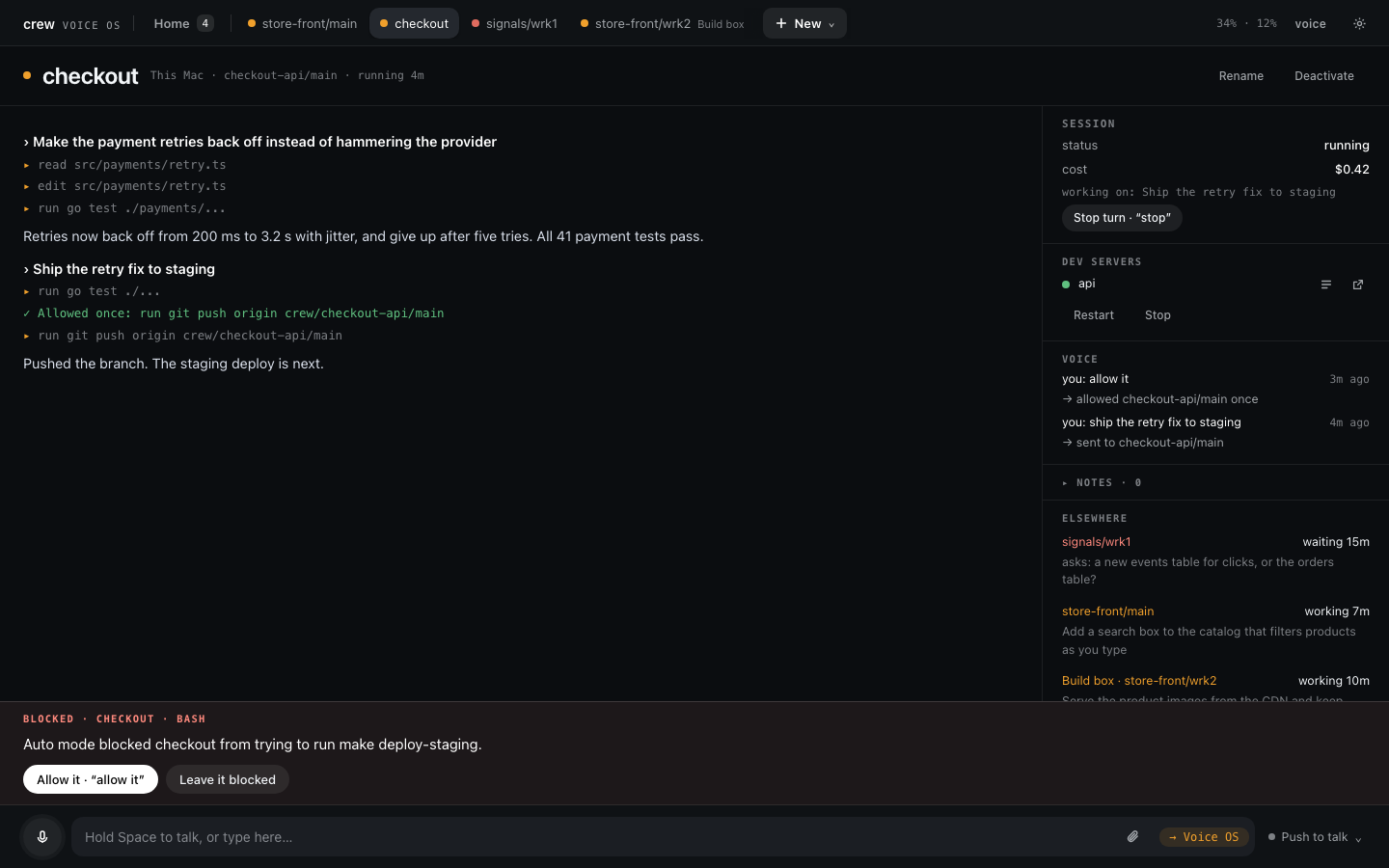
In Auto mode, a call Claude Code blocks comes as a card with a red dot. Allow once (or "allow it") lets that one call through and auto mode is back for the next one; Leave it blocked lets the session carry on without it.
For the fix, say "yes, go ahead" when it asks to apply the change. Then try "mug" on store-front's URL: both mugs show up. That's the whole loop, and you never left the page.
Which session your words go to
Words go to the session on your screen, or to a session you name. Voice OS never guesses. If you're
on store/main and say "store work one, run the tests", the words go to store/wrk1, you stay where
you are, and you hear "Sent to store/wrk1. Switch there?". If your words only mention another
session ("put this on top of the wrk1 branch"), it asks "For store/wrk1?": yes sends them there, no
or silence keeps them on the session on screen. A follow-up that names nobody stays on screen too,
whatever you heard last. Updates from sessions you're not looking at wait for a quiet moment and
come as one "Meanwhile…" line.
Modes, model and context
Left of the text box are two chips, and right of it a meter.

The first chip is the session's permission mode. Auto is the default: routine work runs and
Claude Code's classifier blocks what looks risky. Plan plans and changes nothing; approving the
plan puts it back in the mode it had. Ask brings every permission to you as a card, like Claude
Code in a terminal. Skip permissions runs everything unchecked, and said aloud ("skip
permissions for store main") Voice OS asks first. Pick one from the chip, type /mode plan, or say
"switch to plan mode". The mode sticks per session, across restarts. Questions and plans come to
you in every mode.
The second chip is the model ("Opus 5.5 · 1M"). Tap it to pick the model for the next turn, the
same as /model. The list is the one the session's Claude Code offers your account, so a new model
shows up there without a Voice OS update.
The meter says how full the context is ("42k / 200k"). It turns amber as Claude Code nears compacting on its own and red just before it does. Tap it for Compact or Clear; both ask you to confirm first.

Attachments
To hand a session a screenshot or a log, paste it, drop it on the page or use the paperclip. Each file becomes a chip above the box and goes with your next words to that session, typed or spoken. Up to 20 MB each, ten at a time; a session on another machine gets its own copy.

Notes and debug notes
Say "note: search should ignore accents too" and Voice OS replies "Noted.", saving it to the
workspace on screen, store here. "What are my notes?" reads them back.
A debug note is for when Voice OS itself gets something wrong: it misheard, sent words to the wrong session, talked at a bad moment. Say "debug note: it sent that to wrk1 when I was on main" right away. It saves a snapshot of the moment with the log around it, so the problem can be traced later. Include them if you report a bug.
Plain sessions
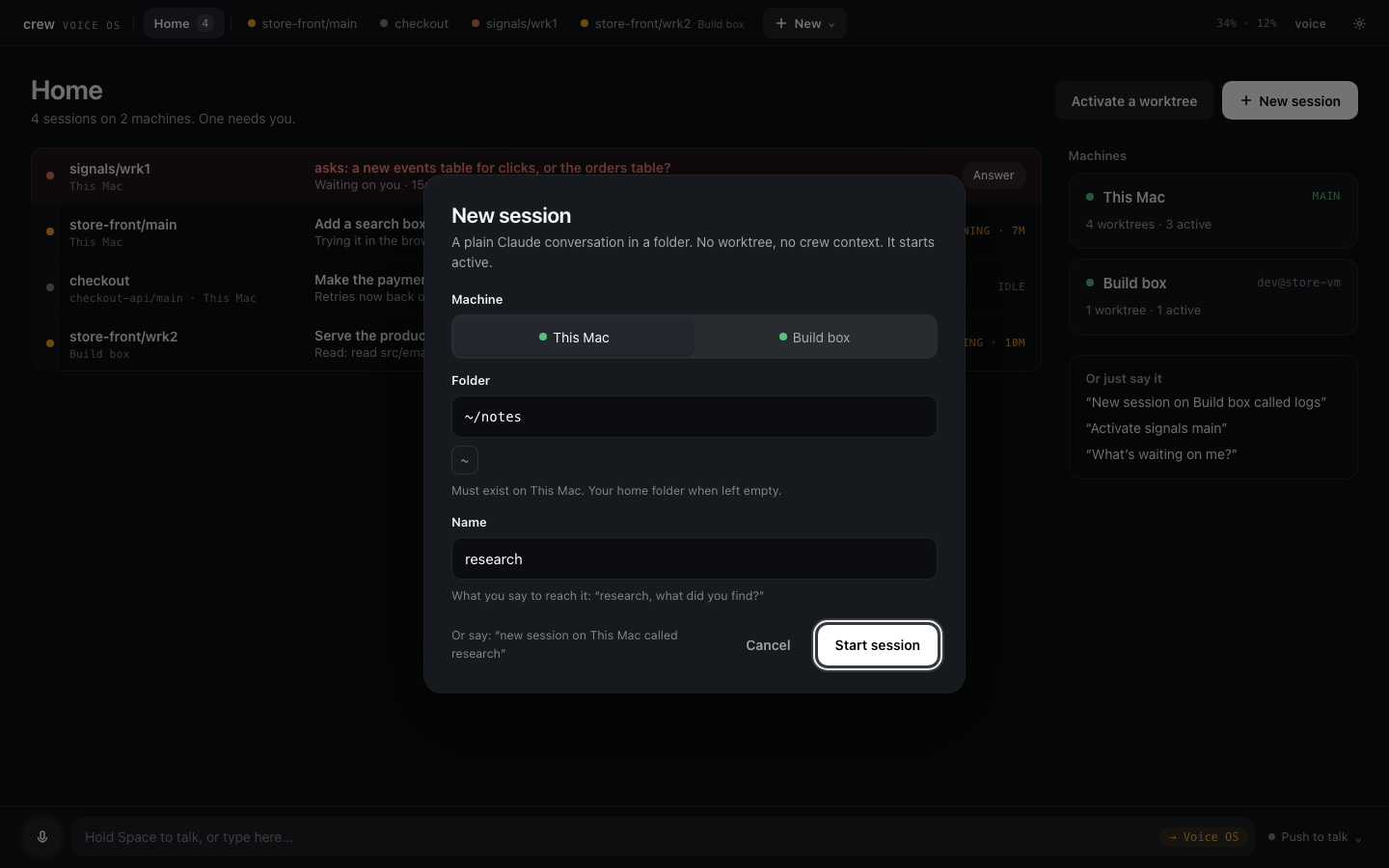
Not everything is a worktree. New → New session opens a dialog: the machine, a folder (home when you name none) and a name. It starts a plain Claude conversation there, no crew instructions and no dev servers, active at once. Saying "start a new session called research in my notes folder" does the same. Remove on its page, or "remove research", drops it and leaves the folder alone.
Sessions asking each other
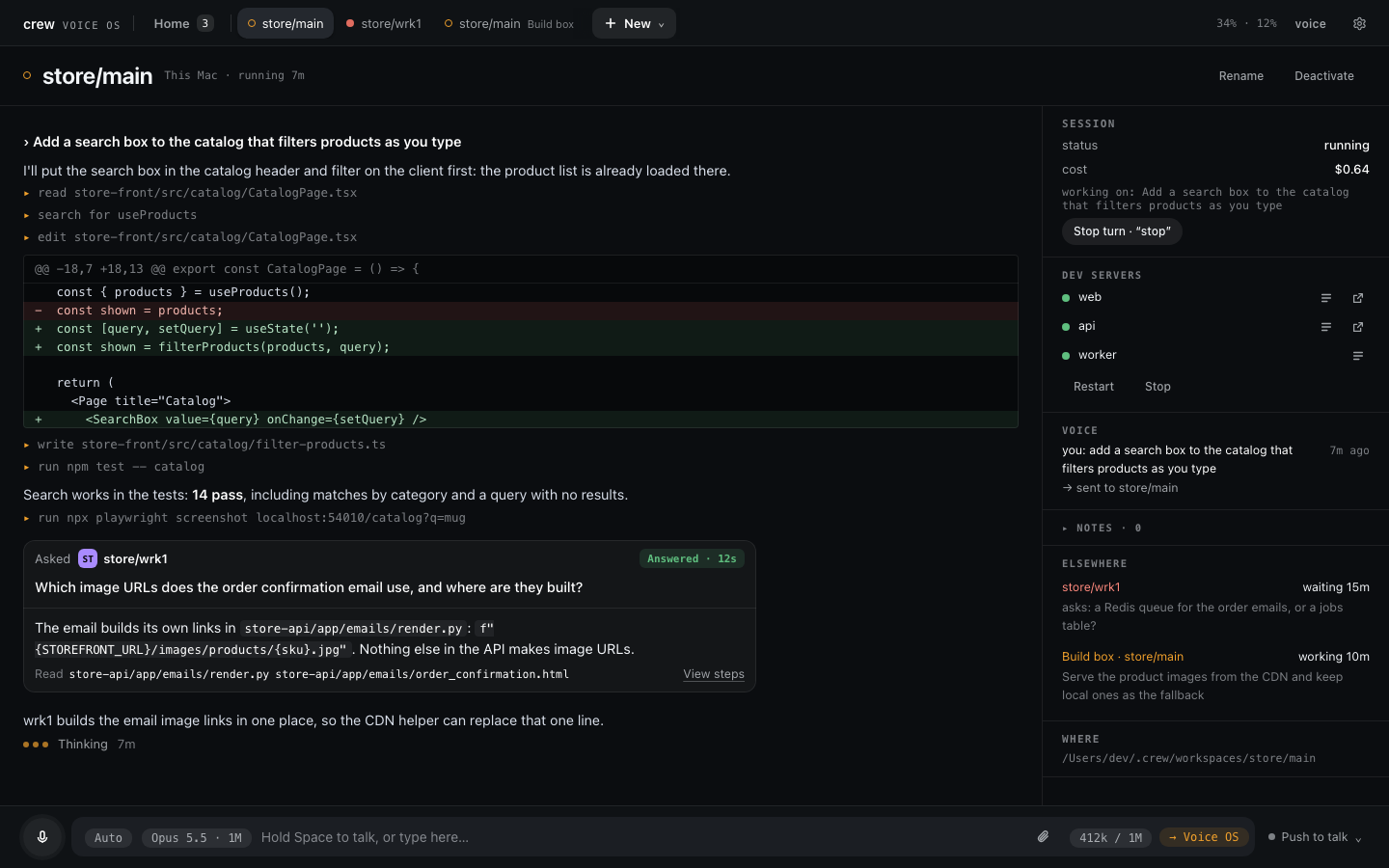
Sessions can reach each other too. Tell store/wrk1 "ask store main how it fixed the search" and
it asks: a read-only copy of store/main answers from what that session knows and its files,
without interrupting it. If the answer needs real work (running the tests, say), you're asked to
Allow it first, and a session asking for a secret always asks you. Each request is a card in the
asking session's stream, with where it stands and what came back.
Voice off and the phone
voice in the top bar, by the settings gear, turns all listening and speaking off in one click, for a call or a quiet office. It shows struck through; click it again to come back. Typing works the whole time, and nothing from the quiet time is read out later.
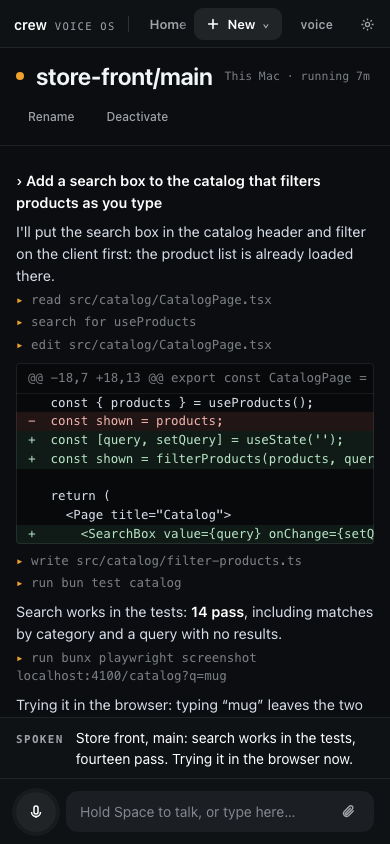
Voice OS has a phone layout too. Settings → Your phone shows a QR code: scan it, save the page to the home screen, and it opens like an app, signed in (tutorial 4 walks through it).
Next
That's a day's work by voice on one machine. Tutorial 3 adds a second one, a build box over SSH, whose sessions show up on the same page next to these.